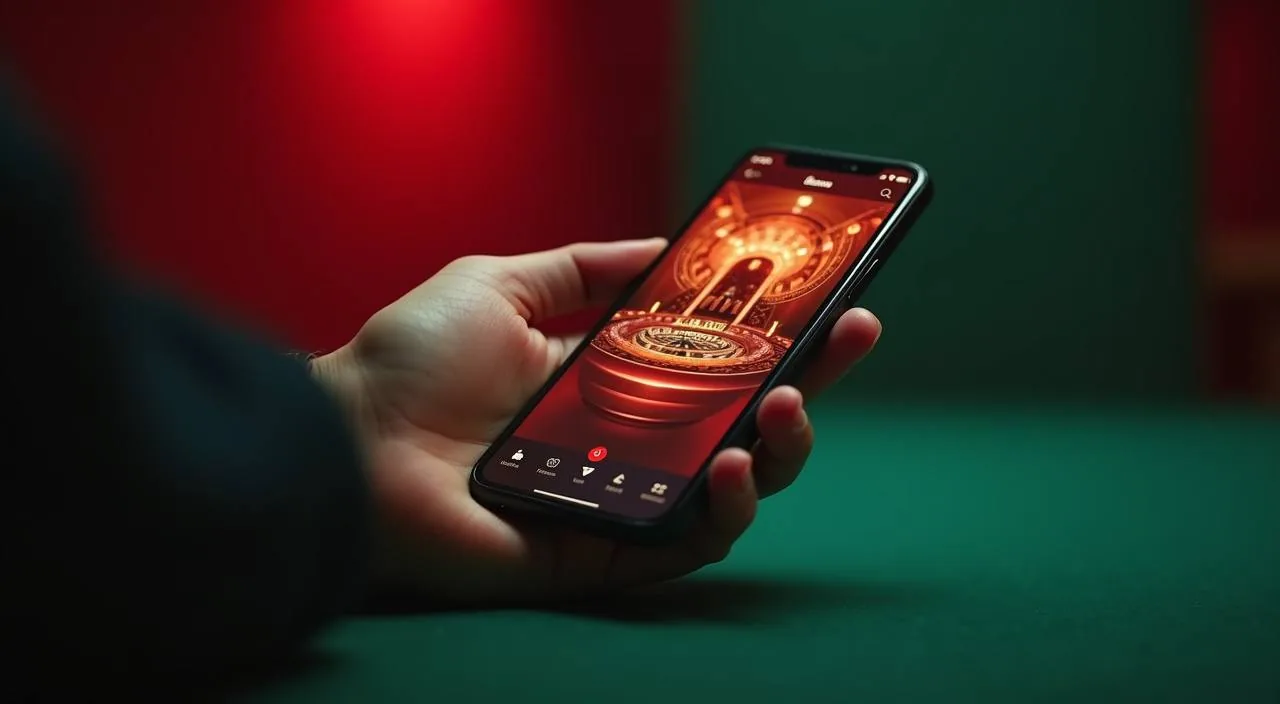
db899 runs through your phone browser without requiring a download — open the site, sign in, and your account picks up exactly where you left off. Access depends on your local law and eligible region; check the current site address at db899 to confirm what is available to you.
When you open db899 on your phone, the lobby loads in your browser — slots from JDB, Habanero, PG Soft, Pragmatic Play and Joker sit alongside live casino tables and the sportsbook, all in a thumb-friendly layout.
BROWSER FEATURE SNAPSHOT
Mobile Access Features at a Glance
The four areas below cover what the db899 mobile browser experience currently delivers. These reflect the rendered page behaviour you can verify by opening the site on your phone — no unconfirmed native features are listed here.
Responsive Game Lobby
The full lobby — slots, live tables, crash games and sportsbook — scales to your screen width automatically. Category tabs stay visible so you can move between Crash Skyward, Roulette Spinmaster and other titles without scrolling back to the top.
Persistent Account Session
Sign in once and your session stays active within the browser tab. If you close and reopen the tab later, the login screen returns you to your account rather than dropping your place in the lobby. Session length follows the published account policy.
Wallet Route on Mobile
Your account wallet section is reachable from the mobile menu in two taps. The deposit and withdrawal screens display the payment options configured for your account — including Nagad, Rocket and Bank Transfer where those rails are active for your region.
Help and Account Recovery
The support link and account recovery path are accessible from the mobile header without signing in. If you lose access to your phone or forget credentials, the published recovery steps are available at db899 before you reach the lobby.
ACCESS IN THREE STEPS
Mobile Access in 3 Steps
Getting into the db899 lobby from your phone does not require installing anything from an app store. The three steps below describe the browser route that works right now. If a native app becomes available, the process will be updated on-site and these steps will reflect that change.
Open db899 in your mobile browser
Type db899 directly into Chrome, Firefox or your phone's default browser. Do not use a link from an unverified third party — the correct address is the only one we support for account access.
Check the page loads correctly
The lobby should render with a full navigation bar and category tabs visible. If the layout looks broken or the page does not load, try clearing your browser cache or switching to a different browser before contacting support.
Sign in to your account
Enter your registered credentials on the login screen. Your wallet balance, game history and account settings will be present as soon as you are authenticated — no re-registration or re-verification is needed on a returning visit.
Save the address for quick return
Use your browser's bookmark or add-to-home-screen option to create a shortcut. This keeps you returning to db899 directly rather than searching each time, which reduces the risk of landing on an unrelated site.
DEVICE COMPATIBILITY CHECK
Which Devices and Browsers Work with db899
Before your first session, it helps to confirm your device and browser combination against the points below. db899 does not publish a fixed list of minimum OS versions or RAM figures, so these checks are based on what the site requires to render correctly rather than invented hardware specs.
Modern Mobile Browser
The site is built for current versions of Chrome and Firefox on Android, and Safari on iOS. If your browser has not been updated in several months, a manual update from your device's app store is the first step before troubleshooting any display issue.
Screen Layout and Orientation
Portrait orientation on a standard smartphone screen is the primary layout db899 is designed around. Landscape works for most sections but the navigation rail is optimised for portrait; rotate if any element appears cut off.
Active Account Required
Game play and wallet access both require a signed-in account. You can browse the lobby layout without signing in, but category content and session continuity activate only after authentication with your registered credentials.
Stable Internet Connection
Live casino tables and crash games such as Crash Skyward stream in real time. A stable mobile data or Wi-Fi connection keeps the session smooth; the site does not offer an offline mode, so a dropped connection will interrupt an active round.
Verify the Current Domain
Always confirm the address bar shows db899 before entering account credentials. If the domain shown differs from this, close the tab. The supported domain is published in the site footer and in account communications.
MOBILE HELP ROUTES
Getting Help with Mobile Access
If something does not work as expected on your phone — a login issue, a page that will not load, or a wallet step that is unclear — the support routes below are the ones published on db899.
Live Chat on Site
The live chat icon is visible in the bottom corner of the mobile page. Open it from your phone browser to reach the support team directly. Available while you are browsing the site — no account sign-in required to start a chat.
Account Help Section
The help and FAQ section inside your account covers login issues, wallet steps and device access questions. Reach it from the account menu after signing in — it is the first place to check before opening a live chat request.
Email Support Route
For account recovery or access issues that cannot be resolved through chat, the published email address is listed on the Contact page at db899. Include your registered email and a description of the issue so the team can locate your account.
ACCESS TRUST CHECKS
Keeping Your db899 Access Secure
Mobile access opens your account to real wallet activity, so a few quick checks protect you from the most common issues. These are steps you can take right now using only the information published on the site.
Confirm the Domain
Every session should start by checking the address bar shows db899 with no extra characters before or after. The site footer also displays the current domain; if they do not match, do not proceed and contact support through the published email route.
Review Published Device Guidance
The help section at db899 lists the browser and device recommendations we support. Cross-checking your setup against that page before your first session avoids the most common display and login issues reported by new accounts.
Protect Your Account Credentials
Use a password that is unique to your db899 account and not shared with your Nagad or Rocket wallet credentials. If you suspect your login details have been exposed, use the password reset path on the login screen immediately — it does not require contacting support first.
Use the Published Recovery Path
Account recovery is handled through the steps shown on the login screen and in the account help section. Do not send credentials to any channel other than the published support email listed on the Contact page — we will never ask for your password through chat.
APP QUESTIONS ANSWERED
Frequently Asked Questions About the db899 App
The questions below cover what Bangladesh players ask most about accessing db899 on mobile — from whether a native app exists to how account continuity works across devices. Each answer reflects what is currently published at db899.
Is there a db899 app I can download from the Play Store or App Store?
A dedicated native app listing is not confirmed at this time. The current access method is the mobile browser at db899. If a store-listed app becomes available, the download link and verification steps will be published on the site. Check the download section at db899 for the latest status.
Can I add db899 to my home screen without downloading an app?
Yes. Open db899 in Chrome or Safari on your phone, then use the browser menu to select Add to Home Screen.
Will my account balance and game history carry over when I switch from phone to desktop?
Your account is stored server-side, so balance, game history and wallet activity are the same regardless of which device you sign in from. Sign in with your registered credentials on any device and the account reflects your current state — no sync step is needed from your end.
Which browser should I use on my Android phone for db899?
Chrome is the primary browser the mobile layout is built around on Android. Firefox also works. Keep your browser updated to a current version; older builds may not render the lobby navigation correctly. The help section at db899 lists additional browser guidance if you run into display issues.
Can I access my Nagad or Rocket wallet through the db899 mobile site?
Your account wallet section on mobile shows the payment options configured for your account. Nagad, Rocket and Bank Transfer are available as payment rails for eligible regions. The deposit and withdrawal screens show the steps and fields — follow the instructions shown there rather than any third-party guide.
What should I do if the db899 mobile page will not load on my phone?
First, clear your browser cache and reload. If the page still does not load, try a different browser or check your mobile data connection. Confirm you are using db899 and not an unrelated address.
 App / Slots